
In today’s data-driven world, spreadsheets are more than just tables of numbers; they’re powerful visual storytelling tools. One of the most effective ways to enhance the storytelling power of a spreadsheet is by embedding images directly into cells. Whether it’s adding logos to a sales report, inserting product photos into a catalog, or simply creating eye-catching dashboards, inserting pictures into Excel cells can transform your data presentation.
This comprehensive guide will walk you through every step of inserting a picture into an Excel cell and ensuring it fits perfectly—without distorting the layout or causing unwanted scrolling. We’ll cover:
- Why you might want to embed pictures into cells
- The difference between normal picture insertion and cell-based pictures
- Step-by-step instructions for inserting and resizing
- Tips for maintaining consistent formatting across large sheets
- Advanced tricks such as VBA automation, conditional formatting with images, and using Excel’s “Insert Data from Picture” feature
- Troubleshooting common pitfalls
Let’s dive in!
Có thể bạn quan tâm: Hướng Dẫn Chi Tiết Cách Nhập File Csv Vào Excel
1. The Value of Cell‑Based Images in Excel
Before we jump into the “how,” let’s discuss the why. Embedding images into cells offers several advantages:
| Benefit | Explanation |
|---|---|
| Data integrity | The image moves and resizes with the cell, maintaining its relative position even when rows or columns are inserted/removed. |
| Consistent layout | Cell-based images respect column widths and row heights, ensuring a clean, grid‑aligned appearance. |
| Ease of manipulation | You can apply cell‑based actions—like sorting or filtering—without worrying that images will float off the sheet. |
| Automation potential | With VBA or Power Query, you can programmatically insert images based on cell values, making dynamic dashboards possible. |
If you’re used to just dropping an image onto a sheet, you’ll find that the image floats above the grid and can be misaligned or fall off when you adjust cells. Cell‑based images solve this problem by binding the picture to a specific cell location.
Có thể bạn quan tâm: How To Nan Đến Hàng Cuối Cùng Trong Excel
2. Differences Between Regular Pictures and Cell‑Based Pictures
Excel offers two primary ways to insert pictures:
- Standard Picture – Inserted via Insert > Pictures. These objects float over the worksheet. They’re independent of cells, so resizing columns/rows will not automatically adjust the picture.
- Picture in Cell – Inserted via Insert > Pictures > Picture in Cell (available in newer Excel versions). These pictures are anchored to a single cell and will resize along with the cell.
Tip: For spreadsheets that will be shared or printed, cell‑based images usually yield a cleaner layout.
Có thể bạn quan tâm: Cách Lấy Tên Tất Cả Sheet Trong Excel: Hướng Dẫn Chi Tiết 2026
3. Step‑by‑Step: Inserting a Picture into an Excel Cell (Excel 2026+)
3.1. Preparing Your Worksheet
- Open or create the workbook where you want to add images.
- Select the target cell (e.g.,
B2). This cell will serve as the anchor point. - Adjust the cell size if needed: right‑click the row number or column letter, choose Row Height or Column Width, and set a size that matches the expected picture dimensions. For high‑resolution images, a column width of ~20 and a row height of ~100 pixels works well.
3.2. Inserting the Picture
- Go to Insert > Pictures > Picture from File.
- In the file dialog, browse to your image and click Insert.
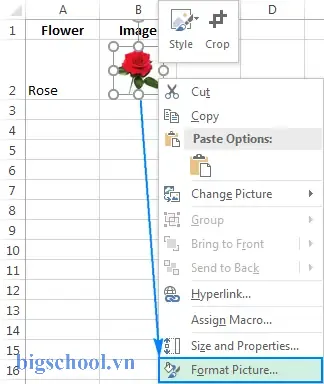
- By default, the image will float. To anchor it to the cell:
- Right‑click the image.
- Choose Size and Properties.
- Under Properties, select Move and size with cells.
- Resize the image manually by dragging its corners. You can hold Shift while dragging to maintain aspect ratio.
- Position the image so that it’s centered within the cell. Use the alignment guides that appear.
3.3. Using the “Picture in Cell” Feature (Excel 365 / 2026)
If you’re using a newer version of Excel (2026 or Office 365), you can skip the manual anchoring:
- Select the cell where the picture should appear.
- Go to Insert > Pictures > Picture In Cell.
- Browse to the image, click Insert.
- The image appears directly inside the cell and automatically scales to fit (maintaining the aspect ratio). If it’s too large, Excel will shrink it to fit the cell bounds.
Pro tip: After inserting, you can double‑click the image to open the Picture Format tab. Here you can apply styles, filters, and crop the image further.
4. Fine‑Tuning Image Size and Cell Alignment
Even though Excel automatically fits the image, you might want finer control to maintain a consistent look across many cells.
4.1. Setting Exact Dimensions for Cells
- Uniform column widths: Highlight the columns, then right‑click > Column Width > set a number (e.g., 15).
- Uniform row heights: Highlight the rows, right‑click > Row Height > set a number (e.g., 85).
4.2. Using “Format Cells” for Alignment
- Select the cell(s) containing images.
- Right‑click > Format Cells > Alignment tab.
- Set Horizontal to Center and Vertical to Center. This ensures the image stays centered even if the cell size changes.
4.3. Locking Aspect Ratio
If you’re manually resizing multiple images, you can lock their aspect ratio to avoid distortion:
- Click the image.
- On the Picture Format tab, click Crop > Aspect Ratio > choose Lock Aspect Ratio.
5. Automating Picture Insertion with VBA
For large datasets—such as product catalogs—manual insertion is impractical. Below is a simple VBA macro that inserts pictures into cells based on a file path stored in the adjacent cell.
Có thể bạn quan tâm: Cách Nhập Bảng Từ Excel Vào Word – Hướng Dẫn Chi Tiết Và Đầy Đủ
Sub InsertPicturesIntoCells() Dim ws As Worksheet Dim rng As Range, cell As Range Dim picPath As String Dim img As Picture Set ws = ThisWorkbook.Worksheets("Products") Set rng = ws.Range("B2:B100") ' Adjust range to your data Application.ScreenUpdating = False For Each cell In rng picPath = cell.Value If Dir(picPath) <> "" Then Set img = ws.Pictures.Insert(picPath) With img .Left = cell.Left .Top = cell.Top .Width = cell.Width .Height = cell.Height .Placement = xlMoveAndSize End With End If Next cell Application.ScreenUpdating = True
End Sub
How it works:
- The macro loops through cells in column B (adjust as needed).
- Each cell should contain the full path to an image file.
- The picture is inserted and anchored to the cell, then resized to match the cell’s dimensions.
Run the macro via Developer > Macros, or assign it to a button for even easier use.
6. Advanced Techniques
6.1. Conditional Formatting with Images
You can use conditional formatting to change the image displayed based on cell values. For example, a cell could show a green checkmark if a value is above a threshold, and a red X otherwise. While Excel doesn’t support dynamic image changes directly via conditional formatting, you can simulate it by:
- Using multiple images (e.g.,
Check.pngandCross.png) hidden in separate cells. - Using a helper column to determine which image to show.
- Applying a simple formula in the main cell that references the helper column’s image via the
INDEXfunction.
Example:
=INDEX($D$2:$D$3, IF(A2>10,1,2))
WhereD2contains the green checkmark andD3contains the red cross.
6.2. Using Excel’s “Insert Data from Picture” Feature
With Office 365, Excel now supports OCR-based data import:
- Go to Data > Insert Data from Picture.
- Upload an image of a table or handwritten notes.
- Excel will convert the image into editable spreadsheet data.
While this doesn’t directly insert images into cells, it’s a powerful way to import visual data quickly.
6.3. Creating a “Picture Database” Sheet
When dealing with dozens or hundreds of images, keep a separate sheet that contains file paths and metadata (e.g., product ID, description). Then use VBA to populate the main sheet automatically.
| Product ID | Image Path | Description |
|---|---|---|
| P001 | C:\Images\Product1.png | Red T‑shirt |
This approach separates data from presentation, making maintenance easier.
7. Common Issues and How to Fix Them
| Problem | Diagnosis | Fix |
|---|---|---|
| Image not centered | Cell alignment is set to left/top | Format Cells → Alignment → Center (both) |
| Image gets distorted when resizing cells | Aspect ratio not locked | In Picture Format → Crop → Aspect Ratio → Lock |
| Images disappear after printing | Print area excludes them | Go to Page Layout > Print Area > Set Print Area |
| Images overlap after sorting | Sorting moves values but not images | Use “Picture in Cell” or anchor pictures to cells |
| Images appear too small | Cell size too small | Increase column width/row height or adjust image size manually |
8. Practical Scenarios and Use‑Cases
8.1. Product Catalog
- Cells: 100×100 grid
- Images: Product photos
- Goal: Quick visual reference for sales reps
8.2. Dashboard with Icons
- Cells: KPI metrics
- Images: Up/down arrows, icons indicating status
- Goal: Immediate visual cues for executives
8.3. Attendance Sheet with Photos
- Cells: Employee names
- Images: Portraits
- Goal: Verify identity in a quick glance
9. Tips for Maintaining Performance
Large images can slow down Excel. Here’s how to keep your workbook responsive:
- Resize images to the required resolution before inserting. Avoid inserting 4000 × 4000 pixel images if the cell is only 100 × 100 pixels.
- Compress pictures: After inserting, go to Picture Format > Compress Pictures. Choose “Delete cropped areas” and set resolution to “Screen (150 ppi)”.
- Use the “Insert Picture in Cell” feature, which compresses automatically.
- Avoid embedding too many large images in a single sheet. Split the workbook if necessary.
10. Summary
Inserting a picture into an Excel cell and making it fit perfectly is a powerful way to elevate your spreadsheet’s visual impact. By following these steps:
- Select the target cell and adjust its size.
- Insert the picture using the standard picture dialog or the “Picture in Cell” feature.
- Anchor and resize the image to fit the cell.
- Fine‑tune alignment and lock aspect ratio.
- Automate with VBA for large datasets.
- Troubleshoot common issues.
You’ll achieve a clean, professional layout that’s easy to maintain, share, and present. Whether you’re building a product catalog, a dynamic dashboard, or a simple visual report, these techniques will make your Excel spreadsheets stand out.
Happy Excel‑ing!

Tiến sĩ Lê Thống Nhất sinh năm 1955 tại Nghệ An, là nhà giáo, nhà báo và doanh nhân trong lĩnh vực giáo dục. Ông từng giảng dạy Toán học tại Trường THPT Chuyên Phan Bội Châu và đảm nhiệm nhiều vai trò trong ngành giáo dục, từ viết sách, biên soạn tài liệu đến sáng lập các dự án hỗ trợ học tập trực tuyến.
Ông là người sáng lập BigSchool – nền tảng giáo dục trực tuyến kết nối giáo viên và học sinh cả nước. Ngoài ra, ông còn nổi tiếng với vai trò tác giả, diễn giả truyền cảm hứng và khách mời trên nhiều chương trình truyền hình, trong đó có “Ai là triệu phú” trên truyền hình VTV.
Trong suốt sự nghiệp, Tiến sĩ Lê Thống Nhất đã nhận nhiều giải thưởng giáo dục và được biết đến như một người luôn đổi mới, ứng dụng công nghệ vào dạy và học, góp phần lan tỏa tri thức và niềm say mê học tập cho thế hệ trẻ.