
Có thể bạn quan tâm: Cách Xóa Nhiều Hình Ảnh Trong Excel Một Cách Nhanh Gọn Và Hiệu Quả
Giới thiệu chung
Excel VBA (Visual Basic for Applications) là một công cụ mạnh mẽ cho phép người dùng tự động hoá hầu hết các thao tác trong Excel, từ việc tính toán, định dạng cho tới quản lý dữ liệu. Trong số các tác vụ thường gặp, xóa sheet (bảng tính) là một thao tác quan trọng, đặc biệt khi làm việc với các file báo cáo, dashboards hay các dự án dữ liệu lớn, nơi mà các sheet không còn cần thiết hoặc cần được tái tạo lại mỗi khi chạy macro.
Bài viết này sẽ cung cấp cho bạn một hướng dẫn chi tiết, từ cơ bản đến nâng cao, về cách xóa sheet trong Excel bằng VBA. Chúng ta sẽ:
- Hiểu nguyên tắc hoạt động của VBA khi thao tác với workbook và worksheet.
- Xây dựng các macro xóa sheet đơn giản.
- Xử lý các trường hợp phức tạp: xóa nhiều sheet, xóa sheet theo tên, xóa sheet ẩn, xóa sheet dựa trên điều kiện.
- Bảo vệ dữ liệu: xác nhận người dùng, sao lưu tự động, xử lý lỗi.
- Tối ưu hoá hiệu suất và các lưu ý khi triển khai trên môi trường thực tế.
Hãy cùng đi sâu vào từng phần, kèm theo ví dụ code thực tế và giải thích chi tiết để bạn có thể áp dụng ngay vào dự án của mình.
Có thể bạn quan tâm: Cách Xóa Link Trong File Excel: Hướng Dẫn Chi Tiết Từ Cơ Bản Đến Nâng Cao
1. Kiến thức nền tảng về VBA và đối tượng Worksheet
1.1. Cấu trúc đối tượng trong Excel VBA
Trong VBA, Workbook (sổ làm việc) chứa các Worksheet (bảng tính). Các đối tượng này được tổ chức theo dạng cây:
Application └─ Workbooks └─ Workbook (ThisWorkbook, ActiveWorkbook, … └─ Worksheets (Sheets) └─ Worksheet (Sheet1, Sheet2, …)
- ThisWorkbook: workbook chứa macro đang chạy.
- ActiveWorkbook: workbook hiện đang được kích hoạt.
- Worksheets: tập hợp các sheet có thể hiển thị (có thể bao gồm sheet biểu đồ, sheet macro, …).
- Sheets: bao gồm cả Worksheets và ChartSheets.
Khi muốn xóa sheet, chúng ta thường thao tác trên đối tượng Worksheet hoặc Sheets. Cú pháp cơ bản:
Worksheets("SheetName").Delete
Hoặc:
Sheets(1).Delete 'Xóa sheet thứ 1 trong bộ sưu tập Sheets
1.2. Cảnh báo khi xóa sheet
Mặc định, khi thực thi lệnh .Delete, Excel sẽ hiện cảnh báo xác nhận để tránh xóa nhầm. Để tránh việc này trong macro, chúng ta thường tắt Application.DisplayAlerts:
Application.DisplayAlerts = False
Worksheets("Sheet1").Delete
Application.DisplayAlerts = True
Lưu ý: Khi tắt cảnh báo, Excel sẽ không hỏi người dùng, vì vậy cần chắc chắn rằng logic của macro đã được kiểm tra kỹ.
1.3. Xử lý lỗi khi xóa sheet
Khi thực hiện xóa, có thể gặp lỗi:
- Error 9: Sheet không tồn tại.
- Error 1004: Không thể xóa sheet vì workbook được bảo vệ hoặc sheet đang được sử dụng.
Chúng ta sẽ dùng cấu trúc On Error để bắt và xử lý lỗi một cách an toàn.
On Error Resume Next
Worksheets("NonExist").Delete
If Err.Number <> 0 Then MsgBox "Sheet không tồn tại!", vbExclamation Err.Clear
End If
On Error GoTo 0
Có thể bạn quan tâm: Cách Xóa Hết Ảnh Trong Excel: Hướng Dẫn Chi Tiết Từ Cơ Bản Đến Nâng Cao
2. Các macro xóa sheet cơ bản
2.1. Xóa sheet theo tên cố định
Sub DeleteSheetByName() Dim wsName As String wsName = "TempData" If SheetExists(wsName) Then Application.DisplayAlerts = False Worksheets(wsName).Delete Application.DisplayAlerts = True MsgBox "Đã xóa sheet '" & wsName & "'.", vbInformation Else MsgBox "Sheet '" & wsName & "' không tồn tại.", vbExclamation End If
End Sub
Trong ví dụ trên, hàm SheetExists (sẽ được định nghĩa ở phần 3) kiểm tra sự tồn tại của sheet trước khi xóa, tránh lỗi.
2.2. Xóa sheet theo chỉ số (index)
Sub DeleteSheetByIndex() Dim idx As Long idx = 3 ' Xóa sheet thứ 3 trong workbook If idx > 0 And idx <= Worksheets.Count Then Application.DisplayAlerts = False Worksheets(idx).Delete Application.DisplayAlerts = True MsgBox "Đã xóa sheet ở vị trí " & idx & ".", vbInformation Else MsgBox "Chỉ số sheet không hợp lệ.", vbExclamation End If
End Sub
2.3. Xóa sheet hiện đang active
Sub DeleteActiveSheet() Dim ws As Worksheet Set ws = ActiveSheet If ws.Name = "Sheet1" Then MsgBox "Không thể xóa Sheet1 vì đây là sheet mặc định.", vbCritical Exit Sub End If If MsgBox("Bạn có chắc muốn xóa sheet '" & ws.Name & "' không?", _ vbYesNo + vbQuestion, "Xác nhận xóa") = vbYes Then Application.DisplayAlerts = False ws.Delete Application.DisplayAlerts = True End If
End Sub
3. Các hàm tiện ích hỗ trợ xóa sheet
3.1. Kiểm tra tồn tại của sheet
Function SheetExists(sName As String, Optional wb As Workbook) As Boolean Dim ws As Worksheet If wb Is Nothing Then Set wb = ThisWorkbook On Error Resume Next Set ws = wb.Worksheets(sName) SheetExists = Not ws Is Nothing On Error GoTo 0
End Function
3.2. Kiểm tra xem workbook có ít nhất một sheet có thể xóa không
Excel không cho phép workbook không có bất kỳ sheet nào. Khi xóa, cần đảm bảo có ít nhất một sheet còn lại.
Function CanDeleteSheet(wb As Workbook, Optional excludeSheet As String = "") As Boolean Dim cnt As Long cnt = wb.Worksheets.Count If excludeSheet <> "" Then If SheetExists(excludeSheet, wb) Then cnt = cnt - 1 End If CanDeleteSheet = (cnt > 0)
End Function
4. Xóa nhiều sheet cùng lúc
4.1. Xóa danh sách sheet được liệt kê trong một mảng
Sub DeleteMultipleSheets() Dim sheetsToDelete As Variant sheetsToDelete = Array("Temp1", "Temp2", "Report_Old") Dim i As Long Application.DisplayAlerts = False For i = LBound(sheetsToDelete) To UBound(sheetsToDelete) If SheetExists(sheetsToDelete(i)) Then Worksheets(sheetsToDelete(i)).Delete End If Next i Application.DisplayAlerts = True MsgBox "Hoàn thành xóa các sheet được chỉ định.", vbInformation
End Sub
4.2. Xóa tất cả sheet trừ một số sheet quan trọng
Sub DeleteAllExcept() Dim keepSheets As Variant keepSheets = Array("Dashboard", "DataSource") Dim ws As Worksheet Dim deleteFlag As Boolean Application.DisplayAlerts = False For Each ws In ThisWorkbook.Worksheets deleteFlag = True Dim k As Long For k = LBound(keepSheets) To UBound(keepSheets) If ws.Name = keepSheets(k) Then deleteFlag = False Exit For End If Next k If deleteFlag Then ws.Delete Next ws Application.DisplayAlerts = True MsgBox "Đã xóa tất cả sheet ngoại trừ: " & Join(keepSheets, ", "), vbInformation
End Sub
4.3. Xóa sheet dựa trên một tiêu chí (ví dụ: tên bắt đầu bằng “Temp”)
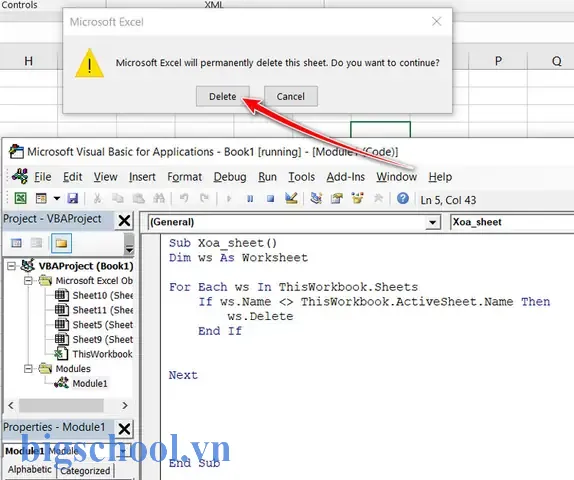
Có thể bạn quan tâm: Hướng Dẫn Chi Tiết Cách Xóa Page 1 Trong Excel: Các Phương Pháp, Lưu Ý Và Mẹo Thông Minh
Sub DeleteSheetsByPattern() Dim ws As Worksheet Dim pattern As String pattern = "Temp" 'Tên bắt đầu bằng "Temp" Application.DisplayAlerts = False For Each ws In ThisWorkbook.Worksheets If Left(ws.Name, Len(pattern)) = pattern Then ws.Delete End If Next ws Application.DisplayAlerts = True MsgBox "Đã xóa các sheet bắt đầu bằng '" & pattern & "'.", vbInformation
End Sub
5. Xóa sheet ẩn (Hidden) và VeryHidden
5.1. Khái niệm Hidden vs VeryHidden
- Hidden: Người dùng có thể hiện sheet bằng Format → Sheet → Unhide.
- VeryHidden: Sheet chỉ có thể được hiển thị qua VBA (
Visible = xlSheetVeryHidden). Thường dùng để lưu trữ dữ liệu hoặc cấu hình.
5.2. Xóa sheet ẩn
Sub DeleteHiddenSheets() Dim ws As Worksheet Application.DisplayAlerts = False For Each ws In ThisWorkbook.Worksheets If ws.Visible <> xlSheetVisible Then ws.Delete End If Next ws Application.DisplayAlerts = True MsgBox "Đã xóa tất cả các sheet ẩn và VeryHidden.", vbInformation
End Sub
5.3. Xóa sheet VeryHidden dựa trên một thuộc tính tùy chỉnh
Giả sử chúng ta gắn Tag trong Names để đánh dấu sheet cần xóa:
Sub DeleteVeryHiddenByTag() Dim ws As Worksheet Application.DisplayAlerts = False For Each ws In ThisWorkbook.Worksheets If ws.Visible = xlSheetVeryHidden Then If Not IsError(Evaluate("='" & ws.Name & "'!Tag")) Then If Range("Tag").Value = "DeleteMe" Then ws.Delete End If End If Next ws Application.DisplayAlerts = True
End Sub
6. Bảo vệ và sao lưu trước khi xóa
6.1. Kiểm tra bảo vệ workbook và sheet
Function IsWorkbookProtected(wb As Workbook) As Boolean IsWorkbookProtected = wb.ProtectStructure
End Function Function IsSheetProtected(ws As Worksheet) As Boolean IsSheetProtected = ws.ProtectContents Or ws.ProtectDrawingObjects
End Function
Khi workbook hoặc sheet được bảo vệ, cần mở bảo vệ trước khi xóa:
If IsWorkbookProtected(ThisWorkbook) Then ThisWorkbook.Unprotect Password:="MyPass"
End If
6.2. Tự động sao lưu trước khi xóa
Sub BackupBeforeDelete() Dim backupPath As String backupPath = ThisWorkbook.Path & "\Backup_" & Format(Now, "yyyymmdd_hhnnss") & ".xlsm" ThisWorkbook.SaveCopyAs backupPath MsgBox "Đã tạo bản sao lưu: " & backupPath, vbInformation
End Sub
Bạn có thể gọi hàm này ngay trước khi thực hiện bất kỳ thao tác xóa nào để giảm rủi ro mất dữ liệu.
7. Xử lý lỗi và thông báo cho người dùng
7.1. Cấu trúc chuẩn để bắt lỗi
Sub DeleteSheetWithErrorHandling() On Error GoTo ErrHandler Dim wsName As String wsName = "DataTemp" If Not SheetExists(wsName) Then MsgBox "Sheet '" & wsName & "' không tồn tại.", vbExclamation Exit Sub End If Application.DisplayAlerts = False Worksheets(wsName).Delete Application.DisplayAlerts = True MsgBox "Xóa thành công sheet '" & wsName & "'.", vbInformation Exit Sub ErrHandler: Application.DisplayAlerts = True MsgBox "Lỗi khi xóa sheet: " & Err.Description, vbCritical
End Sub
7.2. Ghi log lỗi vào một sheet log
Sub LogError(errMsg As String) Dim logWs As Worksheet On Error Resume Next Set logWs = ThisWorkbook.Worksheets("ErrorLog") If logWs Is Nothing Then Set logWs = ThisWorkbook.Worksheets.Add(After:=ThisWorkbook.Worksheets(ThisWorkbook.Worksheets.Count)) logWs.Name = "ErrorLog" logWs.Range("A1:B1").Value = Array("Thời gian", "Mô tả lỗi") End If On Error GoTo 0 Dim nextRow As Long nextRow = logWs.Cells(logWs.Rows.Count, 1).End(xlUp).Row + 1 logWs.Cells(nextRow, 1).Value = Now logWs.Cells(nextRow, 2).Value = errMsg
End Sub
Sau đó trong ErrHandler gọi LogError Err.Description.
8. Tối ưu hiệu suất khi xóa nhiều sheet
Khi làm việc với hàng trăm sheet, việc bật tắt ScreenUpdating và EnableEvents sẽ giảm thời gian thực thi đáng kể.
Sub FastDeleteMultipleSheets() Dim arrSheets As Variant arrSheets = Array("Temp1", "Temp2", "Temp3", "Temp4") Application.ScreenUpdating = False Application.EnableEvents = False Application.DisplayAlerts = False Dim i As Long For i = LBound(arrSheets) To UBound(arrSheets) If SheetExists(arrSheets(i)) Then Worksheets(arrSheets(i)).Delete Next i Application.DisplayAlerts = True Application.EnableEvents = True Application.ScreenUpdating = True MsgBox "Xóa nhanh hoàn tất.", vbInformation
End Sub
9. Các kịch bản thực tế
9.1. Tự động làm sạch workbook sau khi xuất báo cáo
Khi một macro tạo báo cáo, thường tạo các sheet tạm thời (Temp_...). Sau khi xuất file PDF, chúng ta muốn xóa các sheet này:
Sub ExportReportAndClean() Dim reportWs As Worksheet Set reportWs = ThisWorkbook.Worksheets("Report") '--- Xuất PDF --- reportWs.ExportAsFixedFormat Type:=xlTypePDF, _ Filename:=ThisWorkbook.Path & "\Report_" & Format(Date, "yyyymmdd") & ".pdf" '--- Xóa các sheet tạm --- DeleteSheetsByPattern 'Giả sử hàm đã được định nghĩa ở trên
End Sub
9.2. Xóa sheet dựa trên ngày tạo (đối với Excel 2026+ có DateCreated)
Sub DeleteOldTempSheets() Dim ws As Worksheet Dim daysOld As Long daysOld = 30 'Xóa các sheet cũ hơn 30 ngày Application.DisplayAlerts = False For Each ws In ThisWorkbook.Worksheets If Left(ws.Name, 5) = "Temp_" Then If DateDiff("d", ws.Parent.BuiltinDocumentProperties("Creation Date"), Date) > daysOld Then ws.Delete End If End If Next ws Application.DisplayAlerts = True
End Sub
Lưu ý:
BuiltinDocumentProperties("Creation Date")trả về ngày tạo của workbook, không phải riêng sheet. Để lưu ngày tạo sheet, bạn có thể ghi vào một ô ẩn hoặc một custom property khi tạo sheet.
9.3. Xóa sheet khi người dùng nhấn nút trên Ribbon
Bạn có thể tạo một Custom UI trong file .xlsm, thêm một button và gán macro:
<customUI xmlns="http://schemas.microsoft.com/office/2006/01/customui"> <ribbon> <tabs> <tab idMso="TabHome"> <group id="MyGroup" label="Quản lý Sheet"> <button id="BtnDeleteTemp" label="Xóa Sheet Temp" size="large" onAction="DeleteSheetsByPattern"/> </group> </tab> </tabs> </ribbon>
</customUI>
Khi người dùng click, macro DeleteSheetsByPattern sẽ chạy và xóa các sheet tạm.
10. Những lưu ý quan trọng khi triển khai
- Không để workbook không có sheet: Excel yêu cầu ít nhất một sheet hiển thị. Trước khi xóa, luôn kiểm tra
Worksheets.Count. - Quản lý bảo mật: Nếu workbook được bảo vệ bằng password, macro phải có password để unprotect trước khi xóa.
- Sao lưu: Luôn tạo bản sao lưu trước khi thực hiện xóa hàng loạt, đặc biệt trong môi trường sản xuất.
- Hiệu suất: Khi làm việc với lớn dữ liệu, tắt
ScreenUpdating,EnableEvents, vàCalculation(Application.Calculation = xlCalculationManual) để giảm thời gian. - Kiểm tra quyền truy cập: Khi chạy macro trên network share, người dùng có thể không có quyền ghi, dẫn đến lỗi khi lưu bản sao lưu hoặc khi xóa sheet.
- Đánh dấu sheet cần xóa: Thay vì dựa vào tên, bạn có thể sử dụng một Custom Property hoặc Cell marker (ví dụ: ô A1 = “DELETE”) để xác định sheet cần xóa, giúp macro linh hoạt hơn.
11. Tổng kết
Việc xóa sheet trong Excel VBA không chỉ là một thao tác đơn giản mà còn đòi hỏi hiểu biết sâu về cấu trúc đối tượng, xử lý lỗi, bảo vệ dữ liệu và tối ưu hiệu suất. Qua bài viết, bạn đã nắm được:
- Các cách xóa sheet cơ bản và nâng cao (theo tên, index, pattern, ẩn, VeryHidden).
- Cách xây dựng hàm tiện ích để kiểm tra tồn tại và bảo vệ workbook.
- Quy trình sao lưu, xác nhận và ghi log lỗi để giảm rủi ro.
- Các kỹ thuật tối ưu khi xóa nhiều sheet cùng lúc.
- Các kịch bản thực tế thường gặp trong môi trường doanh nghiệp.
Hãy áp dụng những kiến thức này vào dự án của bạn, tùy chỉnh các macro sao cho phù hợp với quy trình làm việc và luôn nhớ sao lưu trước khi thực hiện những thay đổi quan trọng. Chúc bạn thành công trong việc tự động hoá và quản lý workbook một cách hiệu quả!

Tiến sĩ Lê Thống Nhất sinh năm 1955 tại Nghệ An, là nhà giáo, nhà báo và doanh nhân trong lĩnh vực giáo dục. Ông từng giảng dạy Toán học tại Trường THPT Chuyên Phan Bội Châu và đảm nhiệm nhiều vai trò trong ngành giáo dục, từ viết sách, biên soạn tài liệu đến sáng lập các dự án hỗ trợ học tập trực tuyến.
Ông là người sáng lập BigSchool – nền tảng giáo dục trực tuyến kết nối giáo viên và học sinh cả nước. Ngoài ra, ông còn nổi tiếng với vai trò tác giả, diễn giả truyền cảm hứng và khách mời trên nhiều chương trình truyền hình, trong đó có “Ai là triệu phú” trên truyền hình VTV.
Trong suốt sự nghiệp, Tiến sĩ Lê Thống Nhất đã nhận nhiều giải thưởng giáo dục và được biết đến như một người luôn đổi mới, ứng dụng công nghệ vào dạy và học, góp phần lan tỏa tri thức và niềm say mê học tập cho thế hệ trẻ.